


The latest WordPress security update, version 7.1.4, arrived on October 28, 2026, and every site owner should act on it this week. The update fixes 22 security problems. One of them is now being targeted by attackers. This guide explains what happened in plain words, how to tell if your site is exposed, and the safest order for updating it.
All details are correct as of November 2026. This story is still moving, so check the sources at the end before making a final decision.
#What happened with the WordPress security update?
The most urgent problem is a flaw in the way WordPress updates itself. Security teams track it as CVE-2026-119977. A CVE is simply an official ID number for a known security flaw.
While a full update runs, WordPress unpacks a temporary copy of itself inside a folder called wp-content/upgrade. That copy includes the WordPress installer, and the web server can usually reach it. An attacker who finds that temporary copy at the right moment can end up running code on your server, with no WordPress login at all.
Umut Bayram, a researcher at Picus Security, reported the flaw. On November 3, 2026, the US cybersecurity agency CISA added it to its catalog of known exploited vulnerabilities. That catalog lists flaws with evidence of real attacks.
The November 6 patching deadline in that notice applied only to US federal agencies. Everyone else should still treat this as a priority.
#Is my WordPress site affected?
Your site is affected if it runs WordPress 4.7 through 7.1.3 and does not yet have the fix for its branch. A branch is the first two numbers of your version, such as 6.8 or 7.0. You can see your version in Dashboard > Updates.
You do not have to jump to 7.1.4 to be protected. WordPress also released fixes for older branches.
| Your branch | You are fixed at this version or later |
|---|---|
| 7.1 | 7.1.4 |
| 7.0 | 7.0.8 |
| 6.9 | 6.9.11 |
| 6.8 | 6.8.12 |
| 6.7 | 6.7.11 |
| 6.6 | 6.6.11 |
| 6.5 | 6.5.14 |
| 6.4 | 6.4.14 |
| 4.7 to 6.3 | See the full list on the WordPress 7.1.4 page |
| 4.6 or older | No fix exists, so plan a move |
Only the latest version is actively supported, so a branch fix should be a stopgap. Plan to reach the current release soon. A site on 4.6 or older gets no security updates at all, and it needs a proper upgrade or rebuild.
#How serious is this WordPress vulnerability?
This WordPress vulnerability is serious enough to fix now, but experts disagree on how dangerous it is in practice. That disagreement is worth understanding, because you may read both views.
- High: Wordfence, a WordPress security company, scores the flaw 8.1 out of 10. That number reflects how much damage a successful attack could cause.
- Low: WordPress's own advisory rates it low. The attacker must hit a window that lasted only seconds in lab tests.
- Hard but repeating: Patchstack, another security company, would not call it practical to exploit. It also points out that the window returns with every update, including automatic ones.
Both views can be true. A successful attack would be very bad, and pulling one off is difficult. An update is still the right answer either way.
#What is confirmed and what is not known yet?
Some facts are firm and some are still unclear. Separating them keeps you from overreacting or relaxing too soon.
Confirmed:
- WordPress says you should update your site immediately.
- CISA listed the flaw because of evidence of active exploitation.
- Wordfence said it blocked 13,095 attacks on this flaw in 24 hours.
- Attempts began nine minutes after Wordfence deployed its firewall rule on release day.
Not known yet:
- How many sites have actually been hacked this way. The public record gives no count, and blocked attempts are not successful break-ins.
- Who is behind the attacks. CISA did not describe them.
- Whether exploit code posted on GitHub really works. That has not been established.
#Why can installing the fix expose a site one last time?
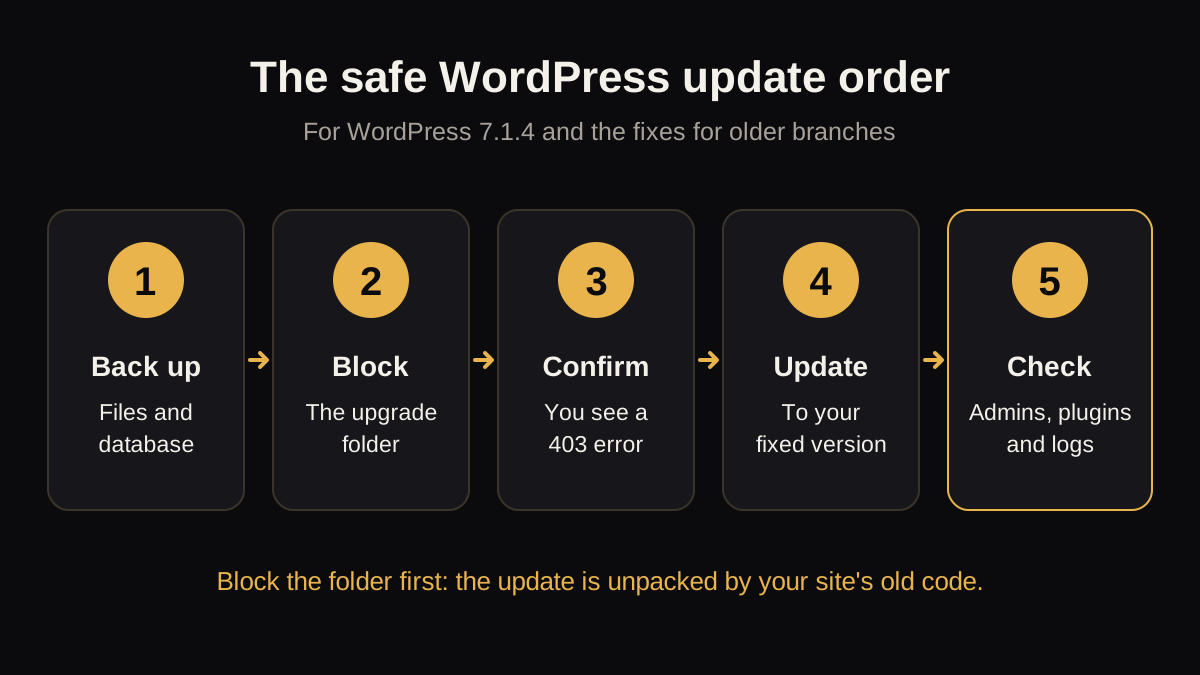
Installing the fix can expose a site because the update is unpacked by the old, unfixed code already on that site. Only after the update finishes does your site have the safer behaviour.
The fix gives the temporary folder a random name, so attackers cannot guess it. During the update that installs the fix, sites on 5.9 or later still use the old naming method. The folder name can be predicted one final time.
Not every site faces this. A small update within your branch, such as 7.1.3 to 7.1.4, usually downloads a partial package. A partial package is exposed only if it happens to include the installer files. Moving from an older branch to 7.1.4 uses a complete package, which does include them.
You cannot easily tell which one your site will get. That is why the safest plan blocks the folder first.
#What should WordPress site owners do this week?
Follow these steps in order. Most sites can finish them in one sitting.
- Make a full backup. Save both your files and your database, and confirm the backup can be opened. WordPress recommends a backup before any update.
- Block web access to the upgrade folder. Use the code in the next section, or ask your hosting company to do it.
- Confirm the block works. Open
yoursite.com/wp-content/upgrade/in a browser. You should see a 403 error, which means access is refused. - Run the update. Go to Dashboard > Updates and choose the update for your site.
- Check the site. Open your homepage, contact form and checkout. Then follow the checks further down this page.
- Review your user list. Most of the other 21 problems need a logged-in account, usually Contributor or higher. Remove accounts nobody uses.
#How do you block the wp-content/upgrade folder?
Block the folder at the web server, because a firewall plugin will not catch this request. WordPress works with this folder directly on disk, so the researcher says blocking web access does not break updates.
On Nginx, add this to your site's server settings:
location ^~ /wp-content/upgrade/ { deny all; }On Apache, if you can only edit .htaccess, add this line to the .htaccess file in your main WordPress folder. Place it above the WordPress rewrite rules:
RedirectMatch 403 ^/wp-content/upgrade/Do not put a new .htaccess file inside the upgrade folder itself. The old updater clears that folder before it unpacks an update, so your file would vanish when you need it.
These commands come from the researcher's published advice. If you are not comfortable editing server settings, send this page to your hosting company and ask them to apply it.
#Which update path fits your setup?
The right path depends on how your site is hosted. Use this table to choose.
| Your situation | What to do first | Watch out for |
|---|---|---|
| Managed WordPress hosting | Ask support whether the folder is already blocked and whether you are patched | Do not assume. Get a clear yes |
Shared hosting with .htaccess access | Add the Apache rule, test for a 403, then update | Keep a copy of the original .htaccess |
| Your own server or VPS | Add the server rule, reload the server, test, then update | wp core update is no substitute, as it uses the same updater |
| Automatic updates turned on | Check your version. You may already be fixed | The update could have run before you blocked the folder, so run the checks |
| A very old site or custom theme | Copy it to a test site first | An update jump can break old plugins |
| WordPress 4.6 or older | Do not wait. Plan an upgrade or rebuild | No security fix exists |
#How do you check if your WordPress site was hacked?
Check for the warning signs below, especially if your site stayed on an affected version after October 28. Wordfence suggests looking for these four things:
- Unexpected requests to PHP files under
wp-content/upgradein your server logs - Administrator accounts nobody recognizes
- Plugins nobody installed
- PHP files inside
wp-content/upgradethat nobody put there
If you or your developer use the command line, `wp core verify-checksums` compares your core WordPress files with the official versions. It does not check plugins, themes or uploaded files, so a clean result is only part of the answer.
If you find something suspicious:
- Keep your logs and a copy of the site. They show what happened.
- Restrict access to the site and change all admin, hosting and database passwords.
- Remove unknown admin accounts and check scheduled tasks.
- Restore from a backup made before the problem began, or rebuild from trusted files.
#Is WordPress still safe to use?
WordPress is still a reasonable choice when someone actively maintains it, but this year shows that it cannot be left alone. This was the fourth WordPress core flaw CISA has listed since July 2026.
A safer WordPress routine is simple:
- Keep automatic updates on unless you have a clear reason not to.
- Install only the plugins you really use, and remove the rest.
- Give each person the lowest role that lets them do their job.
- Keep tested backups stored away from your website.
- Have a named person responsible for updates and security checks.
If nobody on your team has time for this, our website care and content service can take it over. If your old site has become too costly to keep safe, a new, faster website may be the better answer.
#When should you ask for help?
Ask for help if you see any warning sign above, if your site runs an old branch, or if you cannot edit server settings. Hacks often get worse when someone guesses their way through a cleanup.
Unsure where your website stands? Run it through our free website tools, or book a free 30-minute call and we will tell you honestly what needs attention.
#Sources
- WordPress 7.1.4 release notes and fixed versions
- CISA Known Exploited Vulnerabilities catalog
- BleepingComputer: CISA flags the WordPress flaw
- The Hacker News: exposure during the update and how to block it
- Patchstack: WordPress 7.1.4 security release
- Webhosting.today: the severity disagreement
- WordPress: how to update safely
- WP-CLI: verify-checksums